Share Projects and Sessions with People and Teams

Invite people by email or share with a whole team. Give each one a role, choose what they see, and find what others share with you under Shared with me.

Share with the people you work with

A share link is for anyone who has it. Now you can also give specific people access. Open Share on a project or a session and switch to the People tab.

Enter an email address, pick a role, choose whether they see the Tasks, the Sessions or both, and press Invite. The project shows up in their sidebar under Shared with me. If they don't have a Vicoa account yet, the access waits for them and attaches when they sign up with that address.

Four roles

  • Viewer reads the task board and the shared sessions
  • Commenter can also comment and react on tasks
  • Editor can also create and edit tasks
  • Admin can also manage who has access

Change someone's role, narrow what they see, or remove them at any time. Changes apply immediately.

Teams

Create a team in Settings → Teams and invite people by email or with an invite link. An invitation shows up in the invitee's account menu with Join and Decline. Share a project with the team and everyone on it gets access; people who leave the team lose it.

What they see

People you share a session with see the conversation, without the terminal, the files, or anything else that reaches your machine. With a project selected, the Tasks page shows who it is shared with next to Share.

Available now in the web app and the desktop app. Read more in the features guide.
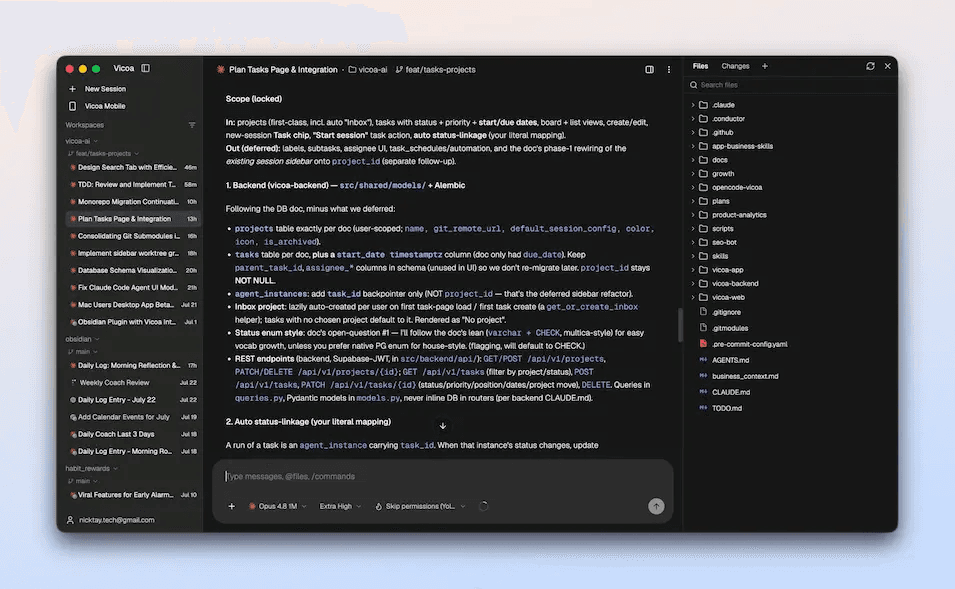
Reference Sessions, Tasks and Automations with #

Type # to point your agent at another session, a task or an automation. The details ride along with your message, no copying and pasting.

# reaches into Vicoa

@ pulls your files into a prompt. # does the same for the rest of your workspace: a running session, a task, or an automation.

Type # in the message box and start typing a name, or press # on its own to see the most recent of each.

continue from #zesty-quartz, it left the migration half applied

What the agent gets

The token stays in your message, and Vicoa attaches a short block with the details: a task's status, priority and description; a session's agent, folder and worktree; an automation's schedule and prompt. Each block ends with the vicoa command for the full record, so the agent can dig further on its own instead of asking you to paste more.

Referencing a task files the session

Reference a task and the session joins that task's Sessions list, and the task moves to In Progress. Changed your mind? Delete the token and the reference goes with it.

Available in the web app and the desktop app. Read more in the features guide.
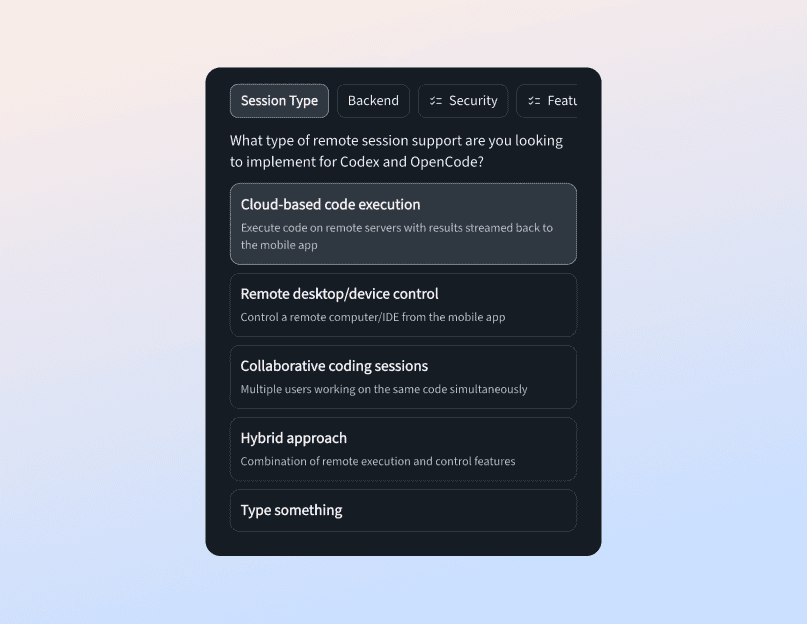
Steer a Running Turn, Fork from Any Turn

Steer a queued message into the agent's running turn, or fork a session from any turn to try another direction. Now on mobile too.

Steer: don't wait for the turn to end

A message you send while the agent is working waits in the queue until the turn ends. Now each queued message has a Steer button. The agent picks the message up at its next safe point, mid-turn, so you can correct course before it goes further down the wrong path.

Steer works with Claude Code, Codex, Pi and Oh My Pi. A message the agent can't take mid-turn goes back to the queue.

Fork: try another direction

Fork a session from any agent turn. The conversation up to that point carries into a new session on the same machine, folder and agent, and the original stays as it was. The fork carries the conversation itself and leaves tool output out, so the new agent re-reads what it needs.

On mobile, the carried conversation sits as a chip above the message box, so you can read it or remove it before you send.

Both work on the web, in the desktop app, and in the latest iOS and Android apps.

Vicoa Desktop Is Now on Windows and Linux

The desktop app now runs on Windows and Linux too, with a Windows installer and a Linux AppImage.

Every desktop platform

When we launched Vicoa for Mac, Windows and Linux were on the way. They're here: the desktop app now runs on all three.

  • Windows: a 64-bit installer for Windows 10 and 11
  • Linux: a 64-bit AppImage. Mark it executable (chmod +x) and run it, no install step
  • macOS: separate Apple Silicon and Intel builds

At home on Linux

On Linux the app draws its own title bar, so the window no longer wears two title bars and a menu bar. Alt still shows the native menu, and if you'd rather your desktop draw the frame, switch to Settings → Appearance → Window → Title bar → System.

Get started

  1. Download Vicoa for your platform
  2. Install it and sign in
  3. The app finds the coding agents you already have and connects them

40+ Coding Agents, Added in One Click

Add any of 33 ACP agents from a catalog in one click, run Antigravity and Pi, see Codex and Copilot usage, and save agent presets.

A catalog of agents

Open Settings → Providers → More agents for a catalog of 33 agents that speak ACP (the Agent Client Protocol): Cline, Factory Droid, Qwen Code, Amp, goose, Junie, Kilo, Kiro, Devin and more. Add puts one on the machine you pick, and Check launches it and tells you whether it works, which models it offers, or exactly why it failed.

Prefer the terminal? vicoa provider catalog, vicoa provider add <id> and vicoa provider check <id> do the same.

ACP agents also show more of what they're doing: tool calls as they start, the agent's plan as a checklist, live token usage, and the agent's own slash commands in the message box. Agents you add show up in the mobile app's agent picker too.

Antigravity and Pi

Google's Antigravity CLI (agy 1.1.15 or newer) is in the agent picker, with its live model list and three permission modes you can switch mid-session. Pi and Oh My Pi are there too.

Codex and Copilot usage

The message box now shows your Codex and GitHub Copilot usage limits, the same meter Claude sessions already had.

Save agent presets

In Settings → Agents, save a provider, model, config and system prompt under one name. Pick it from My agents when you start a session, or use it in an automation.

See every supported agent on the coding agents page.

Vicoa Is Open Source

The complete Vicoa stack is now on GitHub under AGPLv3. Read it, contribute, or run your own server with Docker.

The whole stack, on GitHub

Vicoa is now open source under AGPLv3: the CLI and daemon, the backend, the web dashboard, the desktop app and the mobile app, all in one repository.

It isn't a stripped-down community edition. It's the same code that runs vicoa.ai. If you use the hosted app, nothing changes: same app, same account.

Self-host it

Run the backend, the realtime server and the web dashboard on your own infrastructure with Docker, and point your machines at it instead of vicoa.ai. A self-hosted install has no plans and no limits; only billing and the marketing site stay out of the repo.

The self-hosting guide walks through it.

Contribute

Found a bug, or want your favourite agent supported? Open an issue or a pull request. CONTRIBUTING.md has the setup, and a star on the repo helps more people find it.

Vicoa for Mac Is Now in Beta

Vicoa now has a native Mac app. Install it, sign in, and it connects the coding agents you already have — no CLI or terminal required.

A native app for your Mac

Vicoa now has a Mac app. We built it as an agent-native IDE.

Before, connecting your Mac meant installing the Vicoa CLI and running it in Terminal. Now you just install the app and sign in.

The Vicoa desktop app running a session on macOS

Once it starts, it scans for coding agents you already have installed and connects them — no npm i -g @vicoa/cli, no vicoa daemon, no pairing code.

What you can do

  • Run multiple AI agents in parallel
  • Browse your files alongside your agents
  • See which files each agent created or changed
  • Manage Git worktrees
  • and more are coming...

Signing in registers the machine against the same account your phone uses, so your phone sees the same machines and the same sessions. The app auto-updates.

Get started

  1. Download Vicoa for Mac — Apple Silicon and Intel builds are both available
  2. Install it and sign in
  3. Start a session

The Mac app is in beta today. Windows and Linux are coming.

Let us know what you think.

We read every message!

Answer Claude Code's AskUserQuestion Prompts from Your Phone

Claude Code's AskUserQuestion tool now renders as a real prompt inside Vicoa. Pick a suggested option or write your own answer from your phone.

Answer AskUserQuestion in the app

When Claude Code calls its AskUserQuestion tool, Vicoa now shows the question and its options inline in the chat instead of leaving the session parked until you get back to your desk.

Answering a Claude Code AskUserQuestion prompt inside the Vicoa mobile app

From the phone or the web app you can:

  • Select one of the options Claude Code suggested
  • Type your own custom answer instead
  • Respond the moment the notification arrives

Where it helps most

Two workflows stall the most when a question goes unanswered:

  • Plan mode, where Claude Code confirms direction before it touches a file.
  • Spec-driven development setups that interview you before generating work.

Both now run to completion while you are away from the keyboard. Update to the latest version of the Vicoa app to use it.

Talk to Code: More Accurate Voice Coding

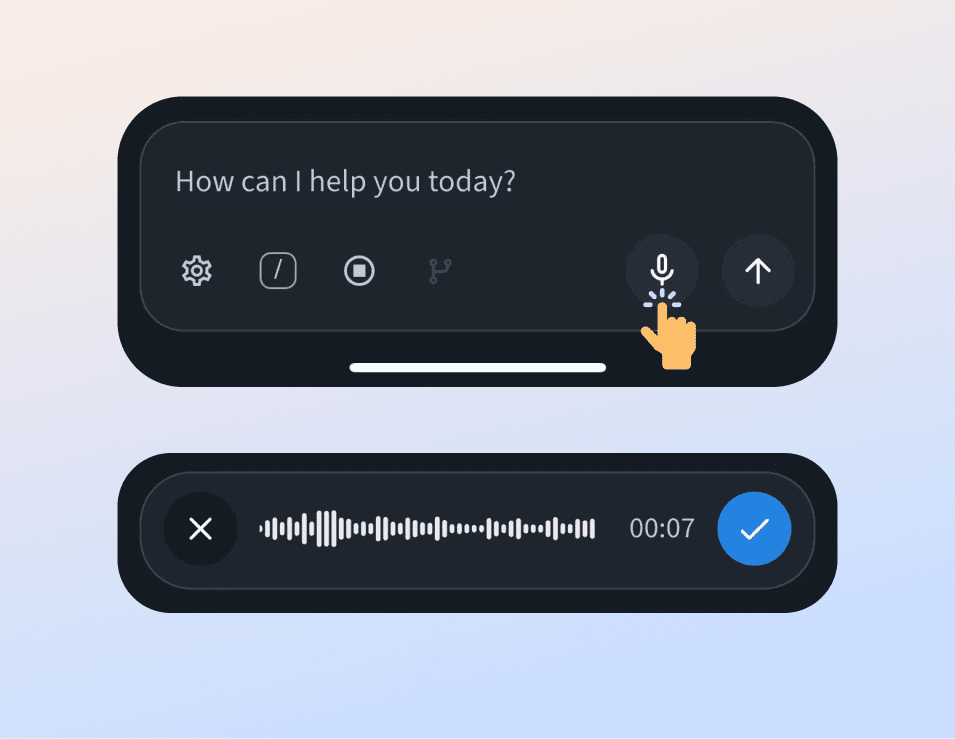
Talk to Code got a major accuracy pass. Speak naturally, get cleaner transcripts, and stop re-recording prompts your agent misheard.

Better transcription

Talk to Code lets you dictate a prompt instead of typing it on a phone keyboard. This release rebuilds the transcription path end to end.

Dictating a prompt to a coding agent with Talk to Code in the Vicoa mobile app

What changed:

  • More accurate transcription, including code identifiers and file names
  • Speak naturally — pauses and filler words no longer break the recording
  • Smoother, more reliable voice sessions on slower connections

Dictating a paragraph of context to Claude Code while walking is now realistic. Update to the latest version of the app and give it a try.

Live Preview: Open Your Localhost on Your Phone

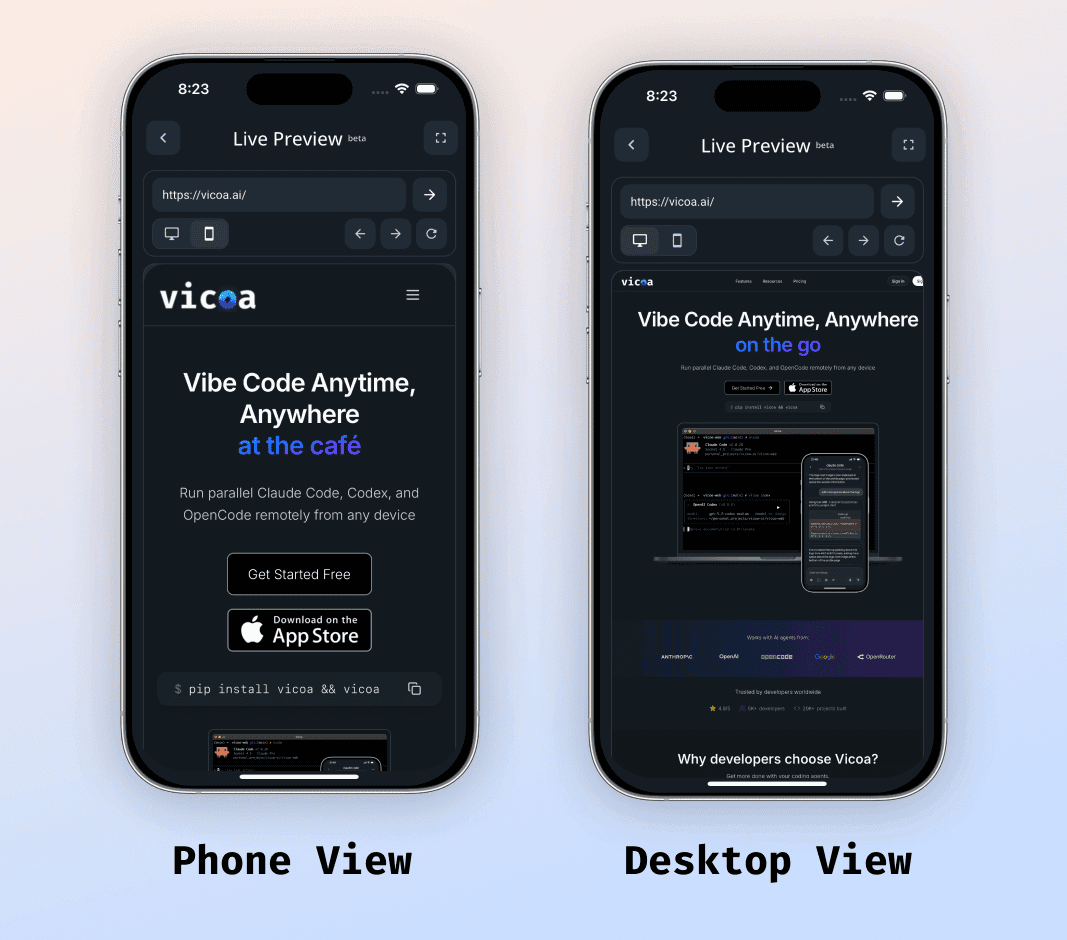
Live Preview maps your localhost to a URL you can open in the app, so you can watch your site change as your agent works — in phone or desktop viewport.

See your changes as you vibe code

Live Preview shows your website or app updating while your coding agent edits it, without you being on the machine that runs the dev server.

Vicoa Live Preview showing a local website in both phone and desktop viewports

It renders in both phone view and desktop view, so you can check responsive layouts from one device.

Getting your localhost into the app

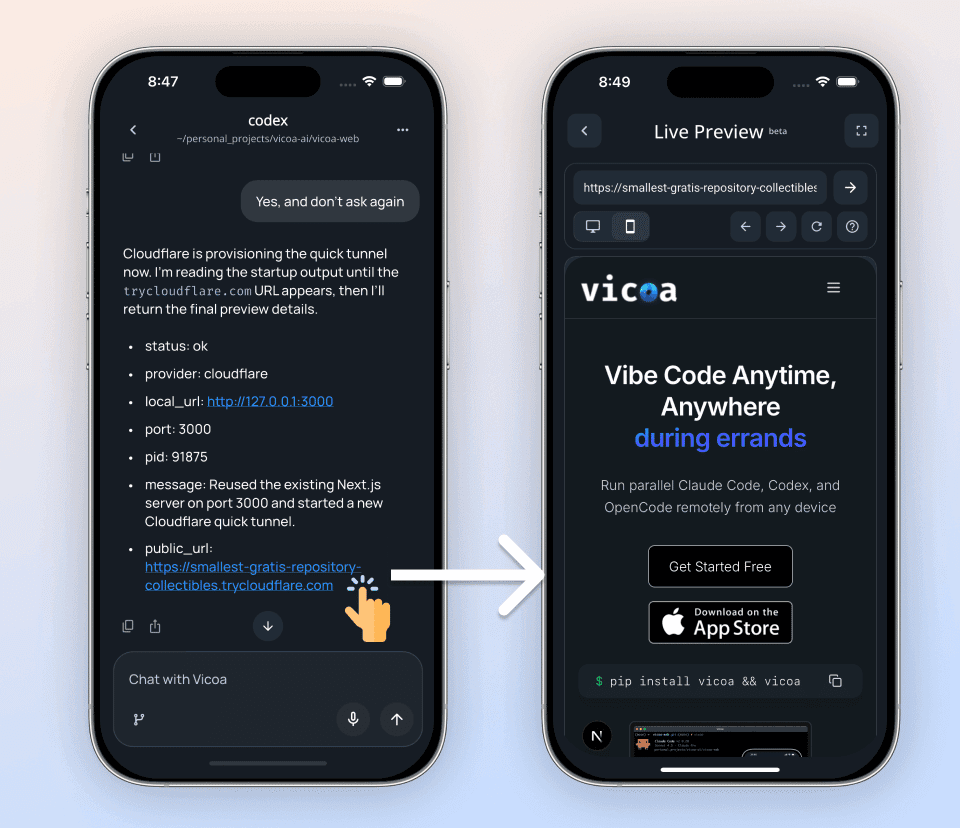
We open-sourced a live-preview skill that maps your local dev server to a URL you can open in a single tap.

Opening a mapped localhost URL from the Vicoa app

Full setup instructions are in the Live Preview docs. Update the Vicoa mobile app and CLI to the latest version to use it.

Sign In with Google or Apple

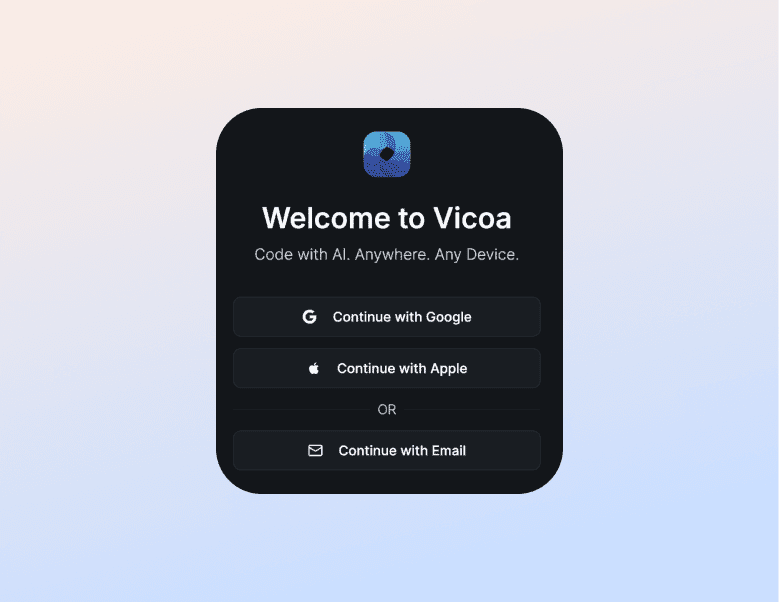
Google and Apple sign-in are live. If the social account uses the same email as your existing account, the two link automatically.

One-tap sign-in

You can now log in to Vicoa with your Google or Apple account instead of an email and password.

The Vicoa sign-in screen with Google and Apple login options

If your Google or Apple account uses the same email address as your existing Vicoa account, the two are linked on first sign-in. Your machines, sessions, and subscription carry over — there is nothing to migrate.

OpenCode Support on Mobile and Web

Vicoa now supports OpenCode alongside Claude Code. Run open-source agents and free models from your phone with one command.

OpenCode, same as Claude Code

OpenCode is an open-source platform for running, customizing, and extending AI coding agents. Vicoa now drives it the same way it drives Claude Code and Codex.

The Vicoa and OpenCode logos side by side

Why it is worth a look:

  • Ships with free models
  • Unlocks top-tier models like Gemini, Kimi, and Zen
  • All of them usable from your phone through Vicoa

Get started

  1. Install OpenCode
  2. Install Vicoa
  3. Run vicoa opencode

We built the integration as an OpenCode plugin and open-sourced it at vicoa-ai/opencode-vicoa. Setup details are in the OpenCode docs.

Claude Code 2.1 Support and a Redesigned Web App

Vicoa CLI 1.3.0 supports Claude Code 2.1.x and fixes the missing-permission-options bug. The web app got a full interface pass.

Vicoa CLI 1.3.0

  • Support for the latest Claude Code (2.1.x)
  • Fixes an issue where permission options were not shown

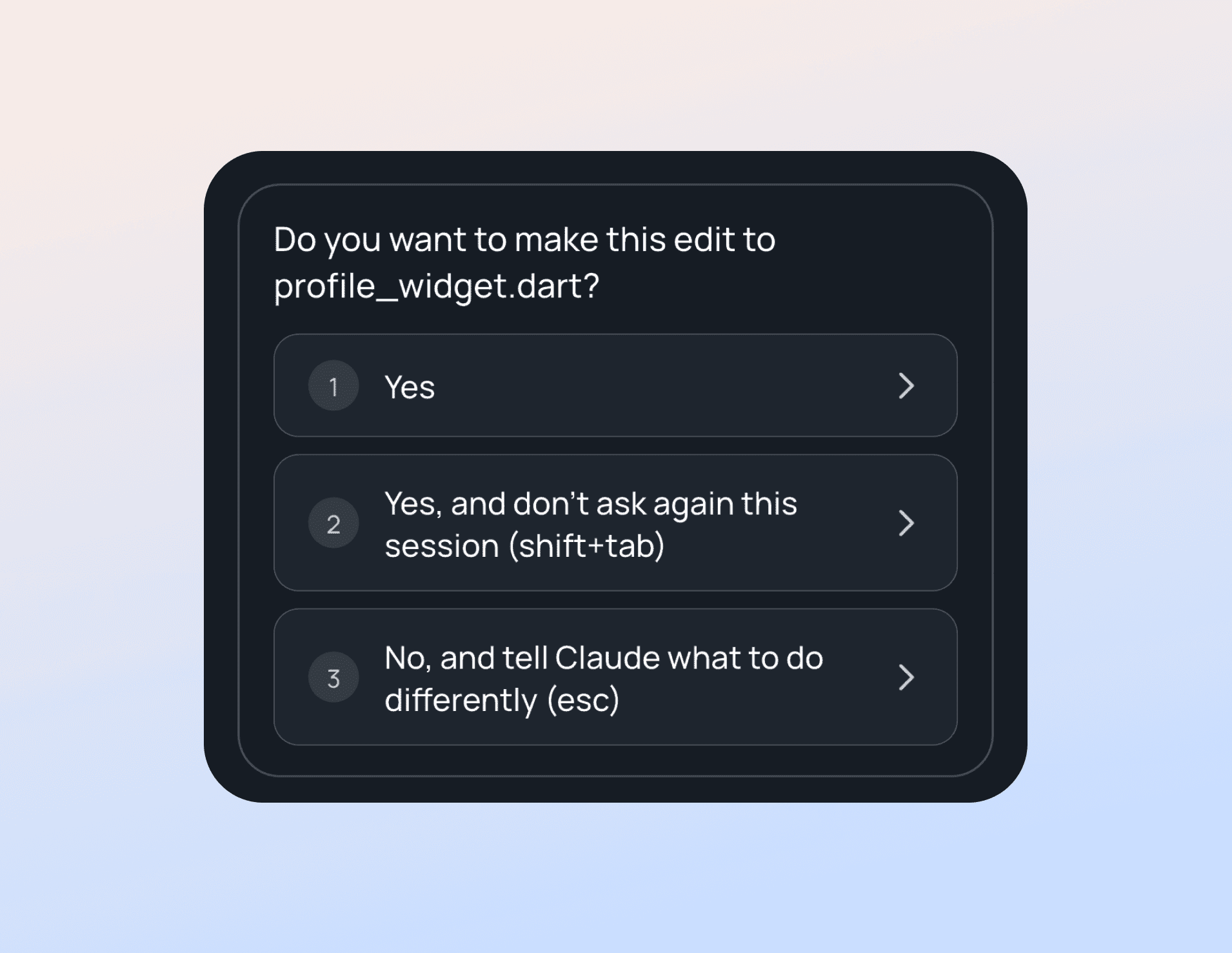
A Claude Code permission prompt with all of its options shown in Vicoa

If you have been running into missing permission prompts, this release resolves it. Upgrade with:

pip install --upgrade vicoa

Web app improvements

The web version got a significant pass:

  • Cleaner, more polished interface
  • Better usability throughout the session view
  • Smoother interactions

If you have not opened the web app recently, it is worth another look.

File Mentions with @ on Web and Mobile

Type @ in chat to reference files from your project, just like native Claude Code and Codex. Works on web and mobile.

Reference files directly in your prompts

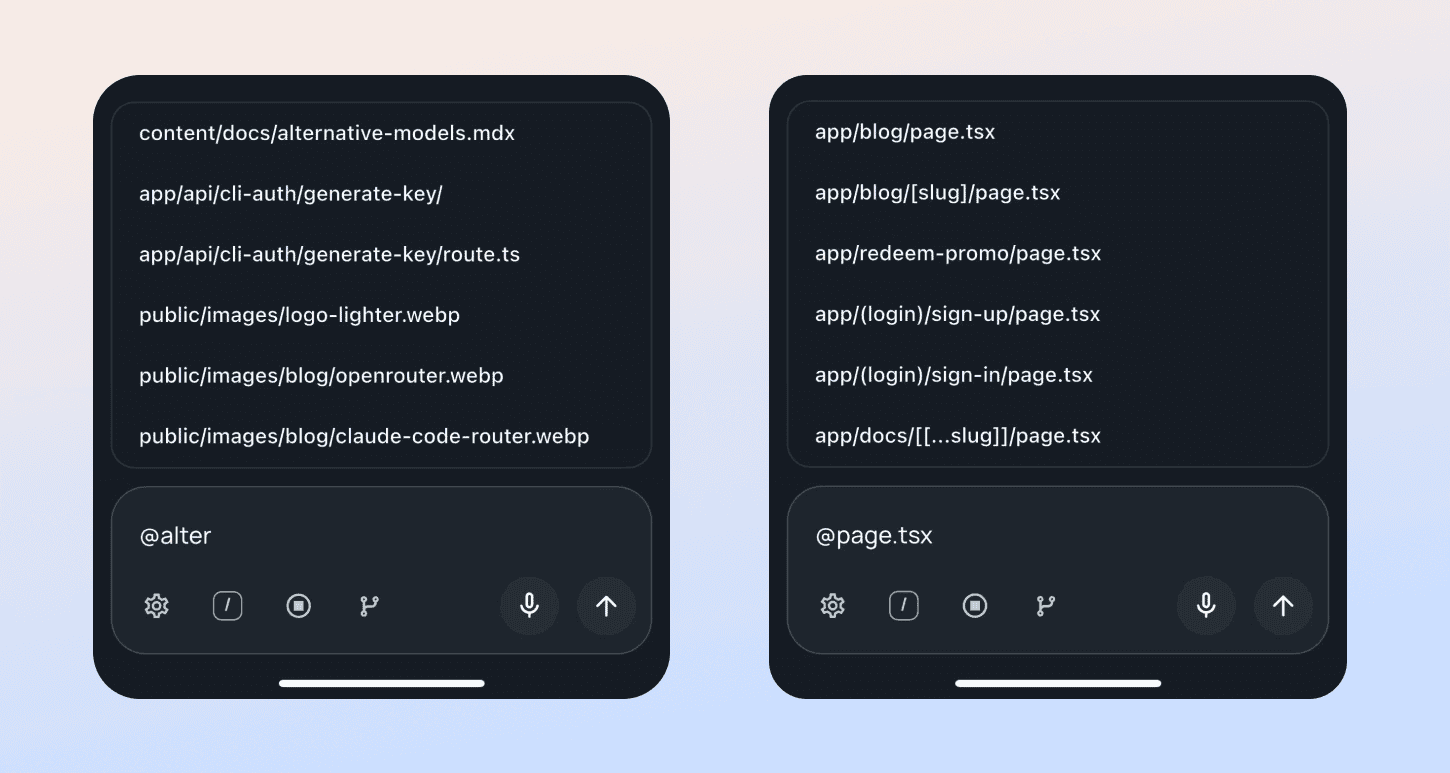
Type @ in the chat and Vicoa fuzzy-searches your project files, exactly like native Claude Code and Codex do in the terminal.

Referencing a project file with an @ mention in the Vicoa chat

Point your agent at the right file without describing where it lives or pasting a path from memory. Available on both web and mobile — update to the latest Vicoa CLI and app to use it.

Slash Commands and Interrupt for Claude Code

Type a slash in chat to run Claude Code commands, including your own custom ones, and stop a running agent with one tap.

Slash commands

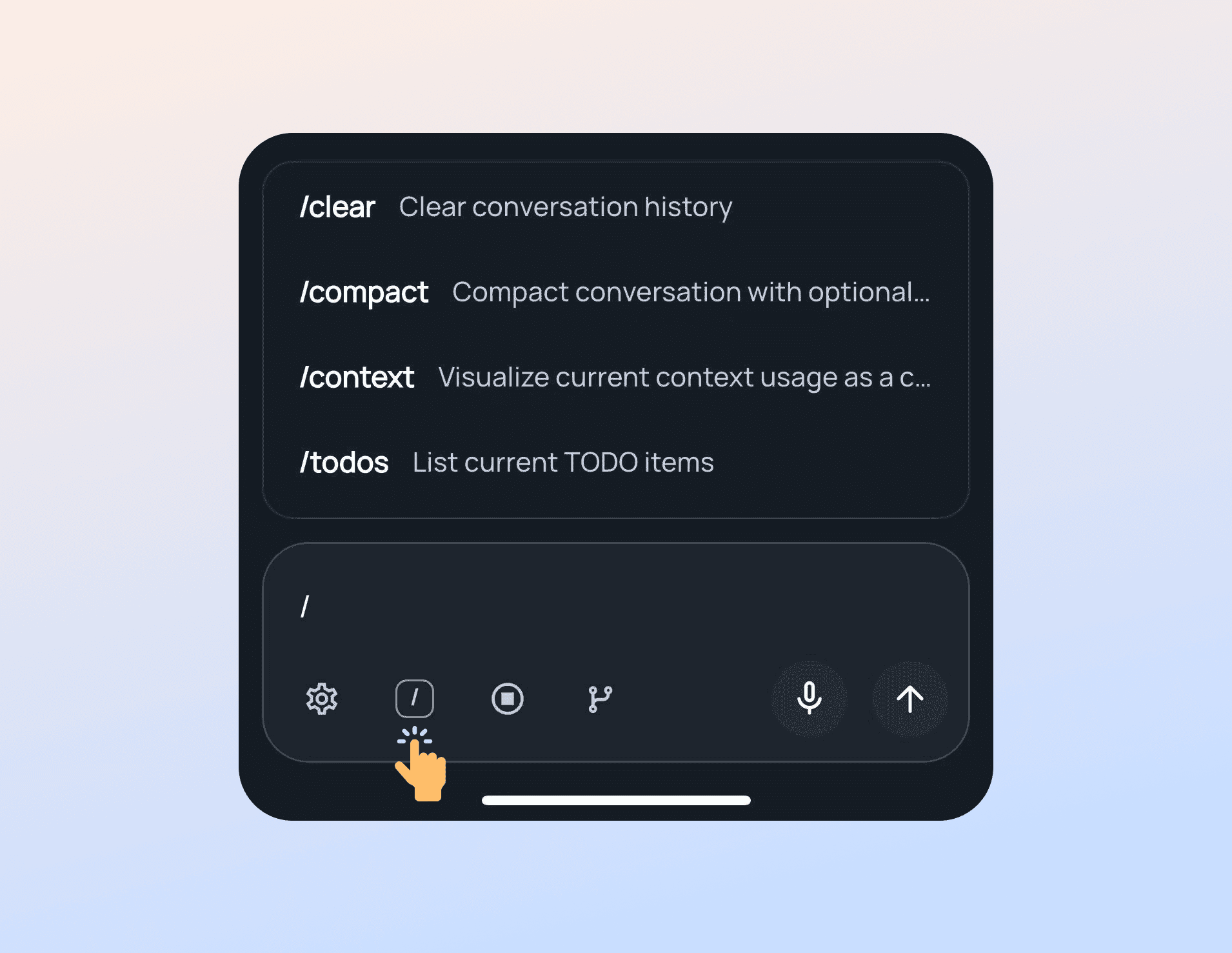
Type / in the chat to open the command menu.

The slash command menu open in the Vicoa chat

  • Use Claude Code's built-in commands
  • Use your own custom commands from ~/.claude/commands

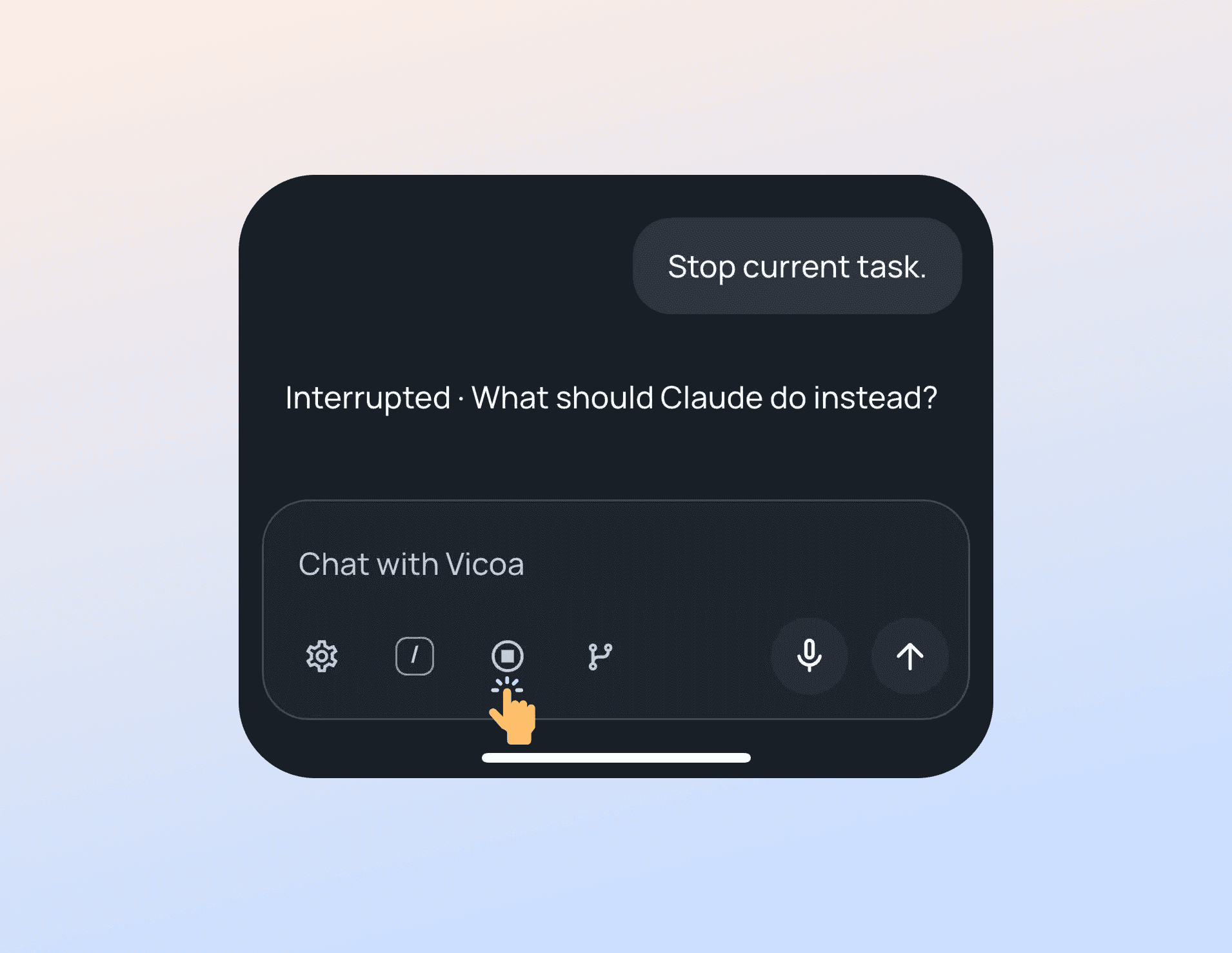
Interrupt Claude Code

Stopping a running Claude Code session from the Vicoa chat

Stop a running agent with one click when it heads down the wrong path, instead of waiting for the turn to finish.

Both work on web and mobile, and both came directly from your feedback.

Permission Modes, Thinking, and Unseen Messages

Switch permission modes and toggle thinking from any device, jump to your unseen messages in long chats, plus a batch of chat polish.

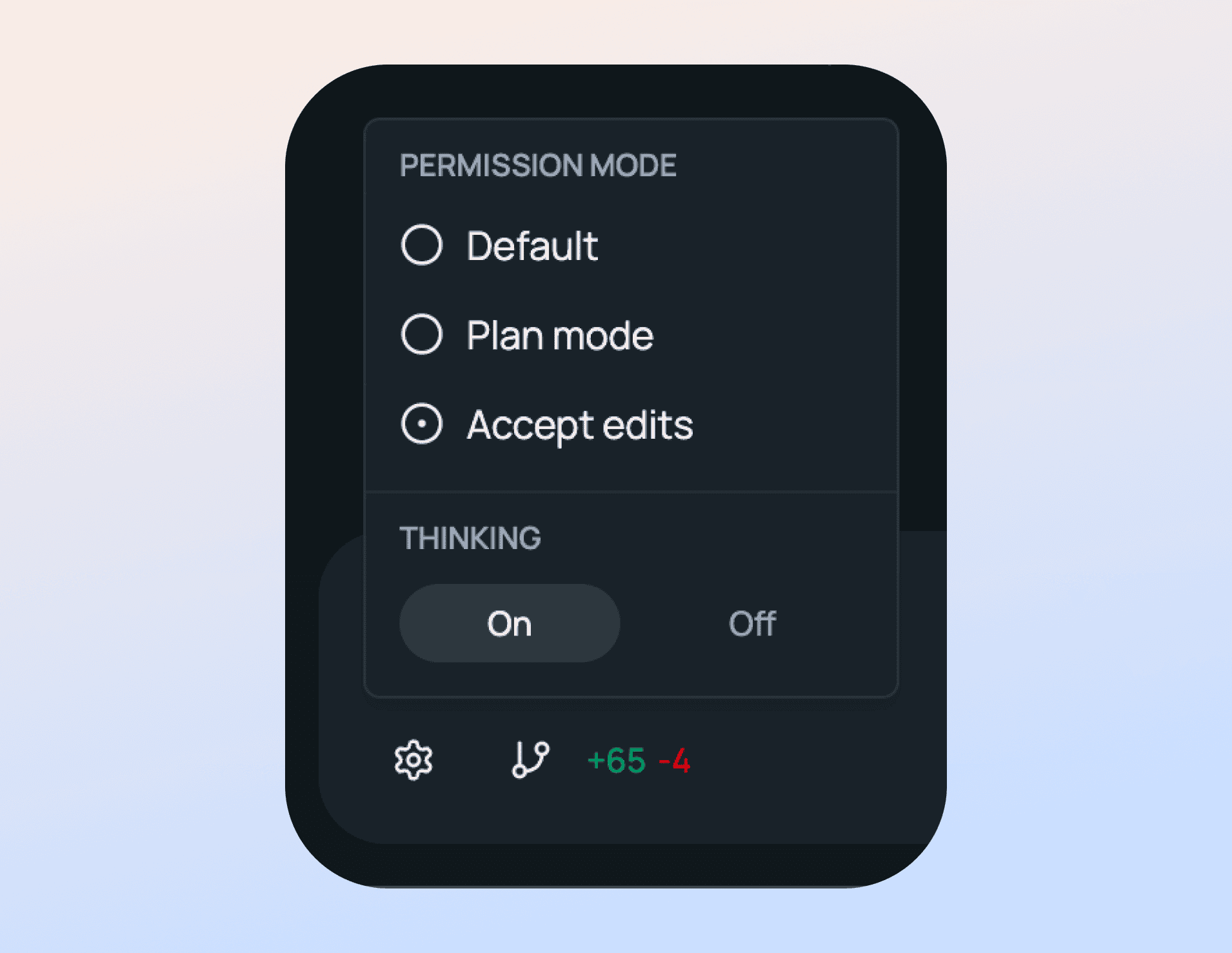
Permission modes and thinking

Permission mode and thinking settings in the Vicoa app

Switch permission modes and turn thinking on or off directly from mobile or web. You no longer have to be at the machine running the agent to change how much rope it gets.

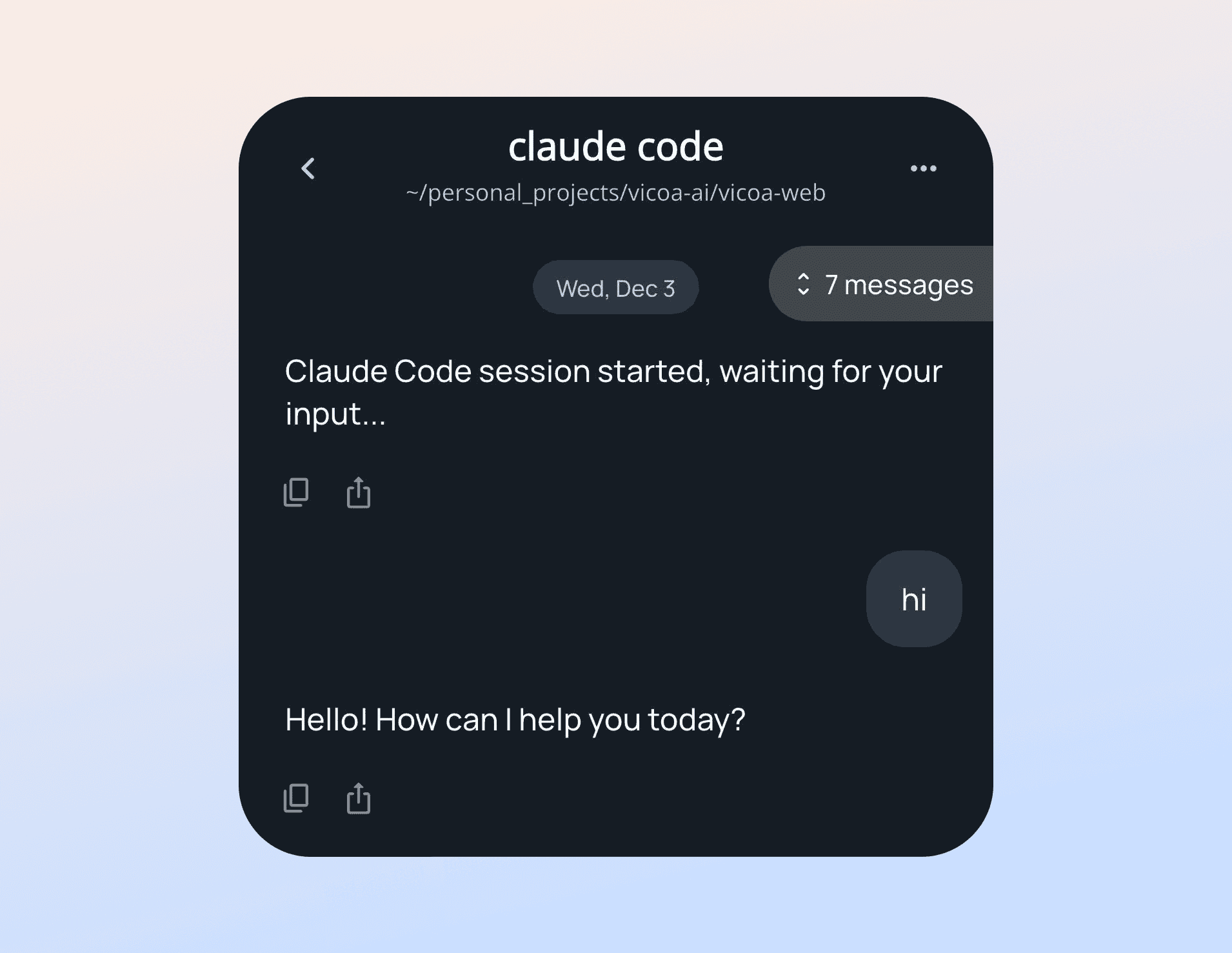
Jump to unseen messages

A Vicoa chat with the project directory in the header and the unseen-messages counter above the conversation

Scrolling back through a chat no longer yanks you to the bottom when a new message lands. Read older messages at your own pace, then tap the new button to jump straight to your latest unseen messages.

Chat polish

  • View your project directory directly in chat
  • Improved copy interactions
  • Clearer thinking indicator, so you always know what is happening
  • Reduced energy usage for longer sessions
  • Better table formatting and readability

Start Agent Sessions from Anywhere, Plus Draft Messages

Start a new agent session from mobile or web without going back to your desktop, and keep half-written prompts as drafts.

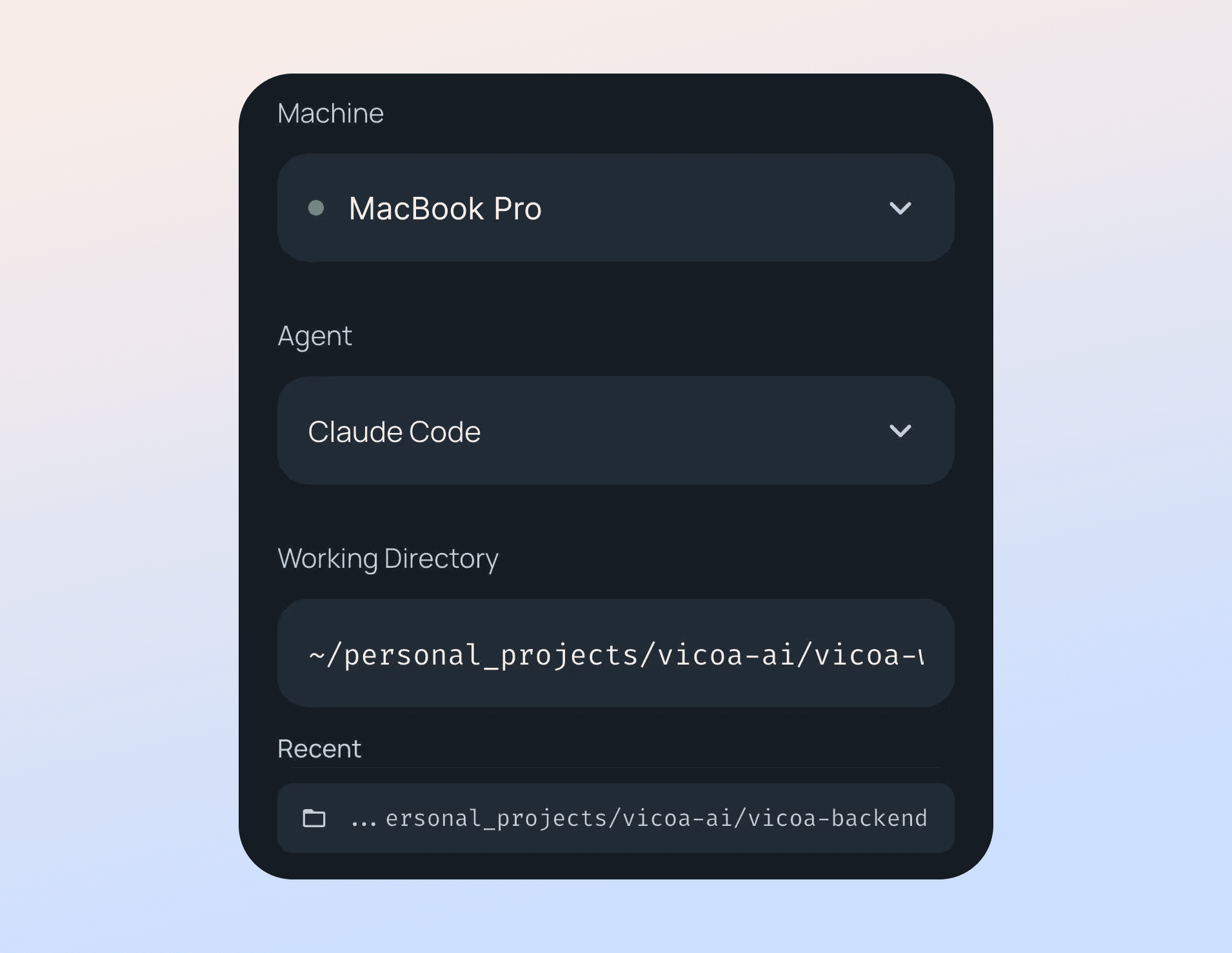
Start agents from anywhere

Starting a new coding agent session from the Vicoa mobile app

You can now start an agent session directly from mobile or web. No more waiting until you are back at your desktop — kick off a run on the go and pick up where you left off later.

Retain draft messages

Started typing a prompt and got distracted? Unfinished messages now stay saved as drafts, so you can think, pause, and come back when you are ready.

Both are available now in the App Store.